It shows
the important tips for the datagrid using C#.NET. It helps to create column,
rows and some useful tips.
Keywords:
datagrid, .NET, DatagrigView. Csharp.NET
Creating
Columns dynamically.
0,1,2…..
are index for the column or you can give unique name for the column.
imp: In
datagrid index starts from 0 onwards
dataGridView1.Columns.Add(Convert.ToString(0), "ColumnName1");
dataGridView1.Columns.Add(Convert.ToString(1), "ColumnName2");
dataGridView1.Columns.Add(Convert.ToString(2), "ColumnName3");
Creating
Rows For the datagridview
dataGridView1.Rows.Add();
Imp: rows must be add only after the column
created otherwise error will be occurred.
To Count
No of rows
dataGridView1
.Rows.Count();
To Count
No of Columns
DataGridView1.Columns.Count();
To add
Data to the datagrid
Here
Rows(0) - index of the row to add the
data (you can add data to different rows through changing index)* same for
column
Cells(0)
– Index of the column where the data to add
dataGridView1.Rows[0].Cells[0].Value
= "Hello";
dataGridView1.Rows[0].Cells[1].Value
= "Dear";
dataGridView1.Rows[0].Cells[2].Value
= "Friend";
To Get
data from datagrid
dataGridView1.Rows[0].Cells
[0].Value();
To Clear
rows in datagrid
DataGridView1.Rows.Clear();
To Clear
Columns in datagrid
DataGridView1.Columns.Clear();
Here the
complete code for the working of datagrid
using
System;
using
System.Collections.Generic;
using
System.ComponentModel;
using
System.Data;
using
System.Drawing;
using
System.Linq;
using
System.Text;
using
System.Windows.Forms;
namespace
textcsharp
{
public partial class Form1 : Form
{
public Form1()
{
InitializeComponent();
}
private
void btnColumnADD_Click(object sender, EventArgs e)
{
dataGridView1 .Columns.Add(Convert.ToString (0), "ColumnName1");
//0-index
dataGridView1.Columns.Add(Convert.ToString(1), "ColumnName2");
dataGridView1.Columns.Add(Convert.ToString(2), "ColumnName3");
}
private
void btnRowsAdd_Click(object
sender, EventArgs e)
{
dataGridView1.Rows.Add();
}
private
void btnRowsCount_Click(object sender, EventArgs e)
{
MessageBox.Show(Convert.ToString( dataGridView1 .Rows.Count),"Rows Count");
}
private
void btnColumnCount_Click(object sender, EventArgs
e)
{
MessageBox.Show(Convert.ToString(dataGridView1.Columns .Count), "Rows Count");
}
private
void btnAddGridValues_Click(object sender, EventArgs
e)
{
dataGridView1.Rows[0].Cells[0].Value
= "Hello";
dataGridView1.Rows[0].Cells[1].Value = "Dear";
dataGridView1.Rows[0].Cells[2].Value = "Friend";
}
private
void btnGetValues_Click(object sender, EventArgs e)
{
MessageBox.Show(Convert.ToString(dataGridView1.Rows[0].Cells
[0].Value), "Value");
}
}
}
 |
| form design |
 |
| add column |
 |
| Add rows |
 |
| add values |
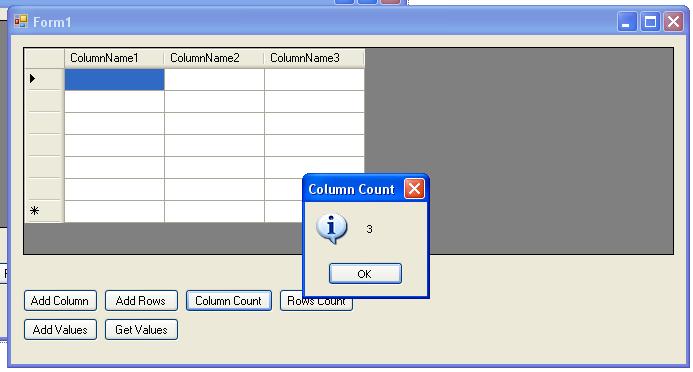 |
| column Count |
 |
| Column Count |
 |
| Get result |
